> ## Documentation Index
> Fetch the complete documentation index at: https://docs.viggle.ai/llms.txt
> Use this file to discover all available pages before exploring further.
# Import Templates from Viggle
> Find template IDs on viggle.ai and import them into the API for rendering
Import pre-made templates from [viggle.ai](https://viggle.ai) instead of uploading your own videos.
* **Video templates** -- single-person scenes for rendering
* **Multi-person templates** -- contain tracked person UUIDs for each person in the video
## Finding template IDs
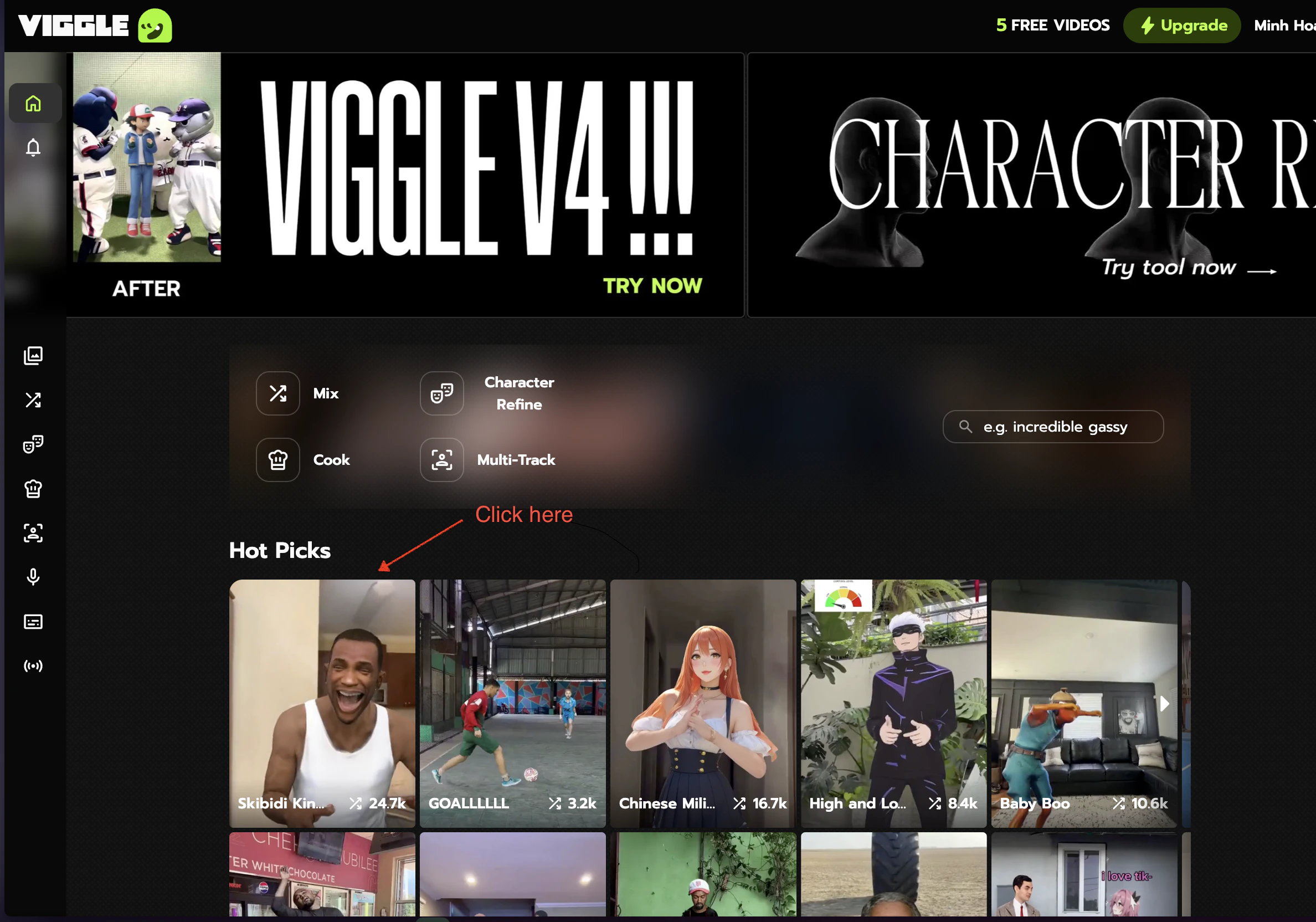
Single-person scenes from the viggle.ai homepage.
Go to [viggle.ai](https://viggle.ai) and browse the **Hot Picks** section.
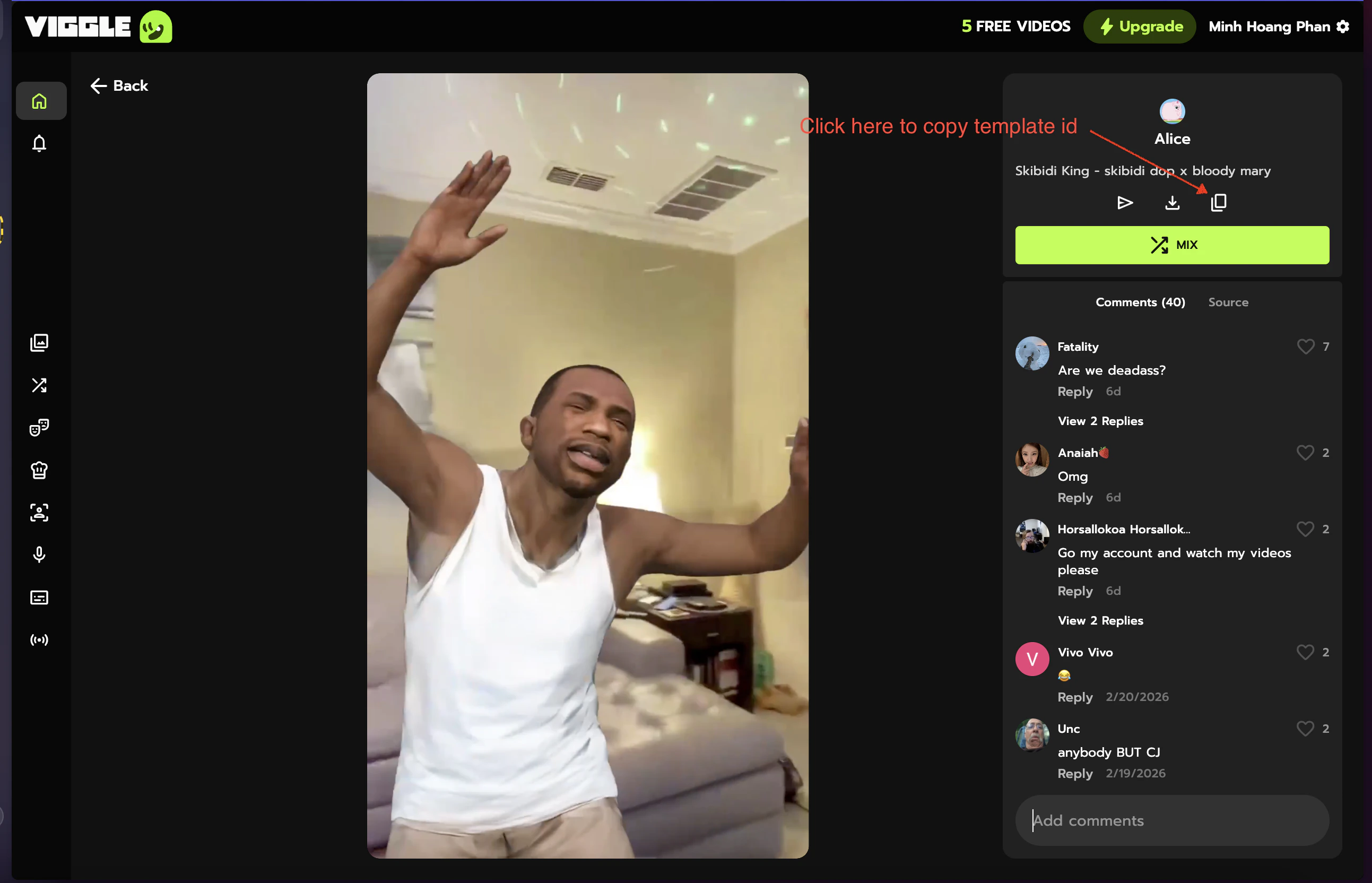
 Click the **copy icon** next to the template title.
 Templates with multiple tracked persons.
Watch how to use the editor to create a multi-person template:
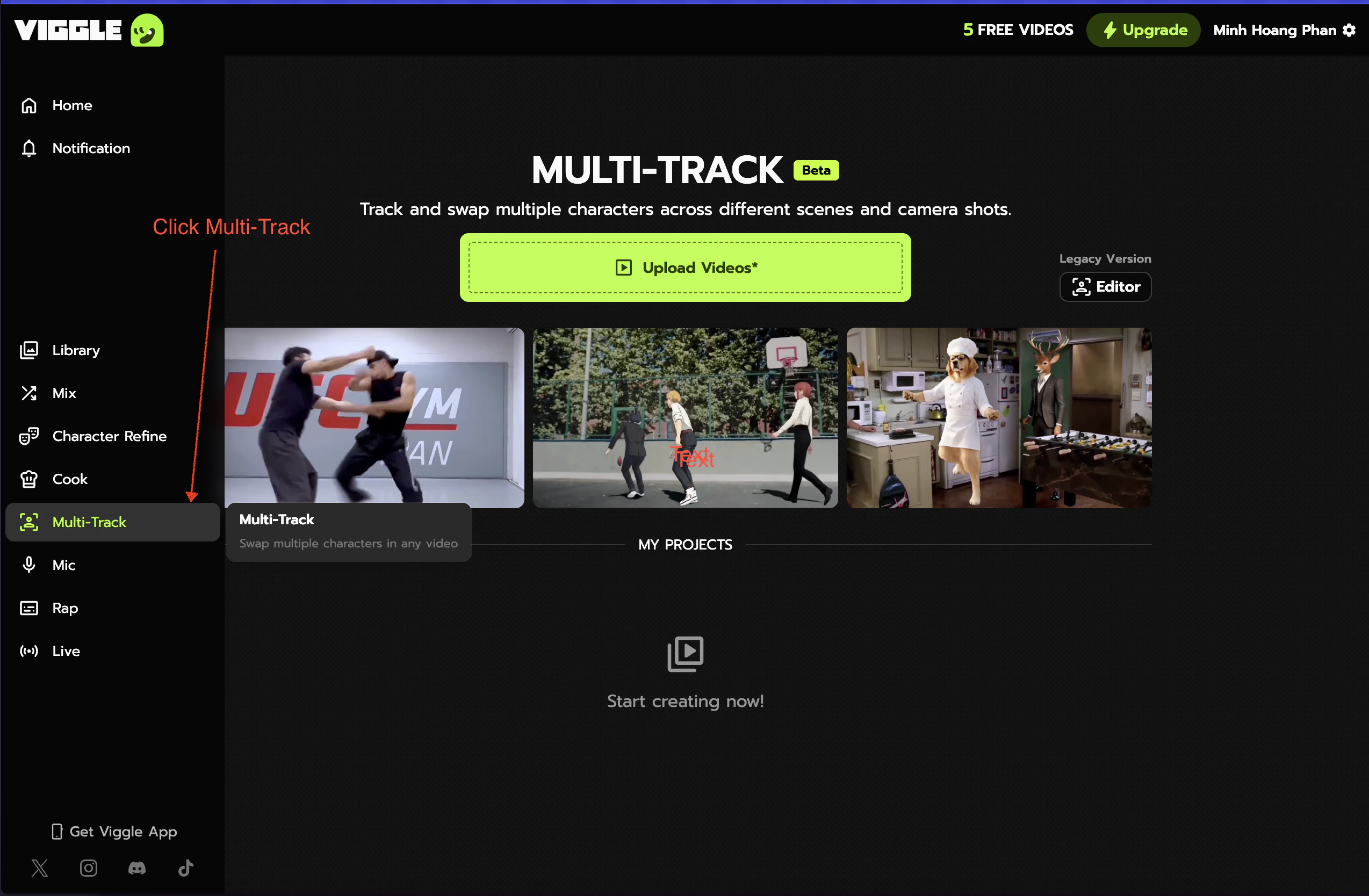
Click **Multi-Track** in the left sidebar.
Templates with multiple tracked persons.
Watch how to use the editor to create a multi-person template:
Click **Multi-Track** in the left sidebar.
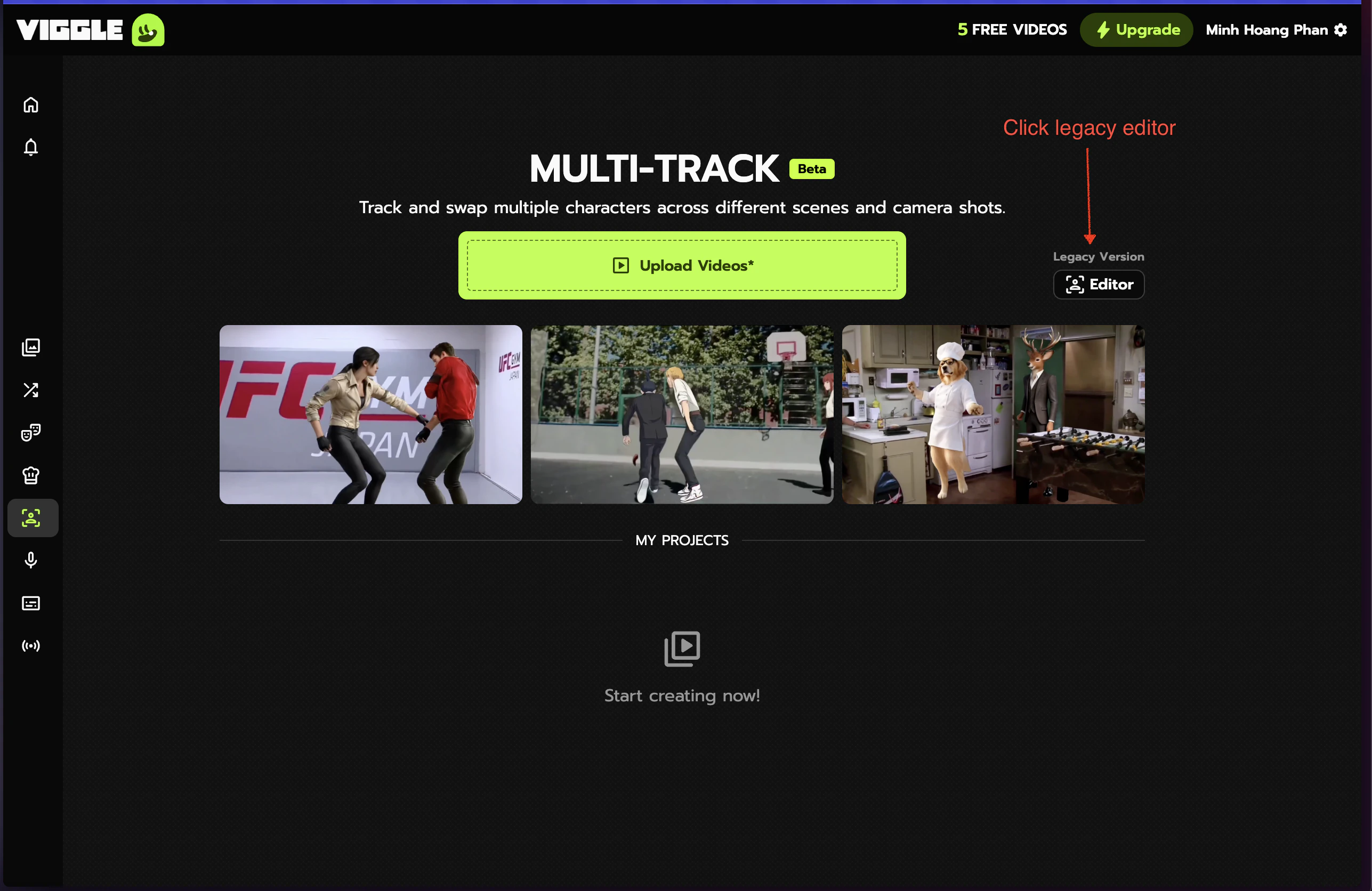
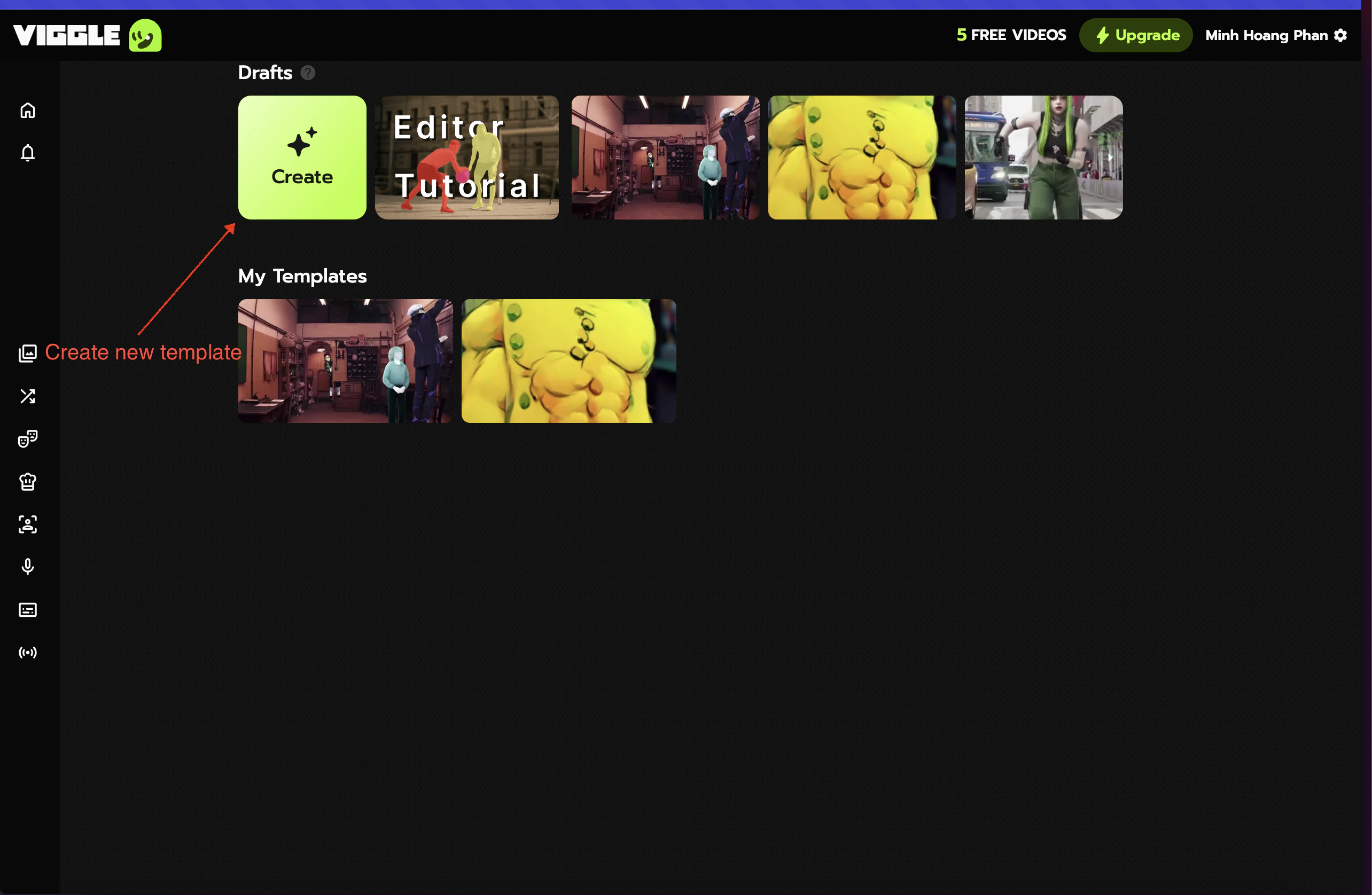
 Click **Editor** under "Legacy Version" in the top-right.
 Click **Create** for a new template, or select from **My Templates**.
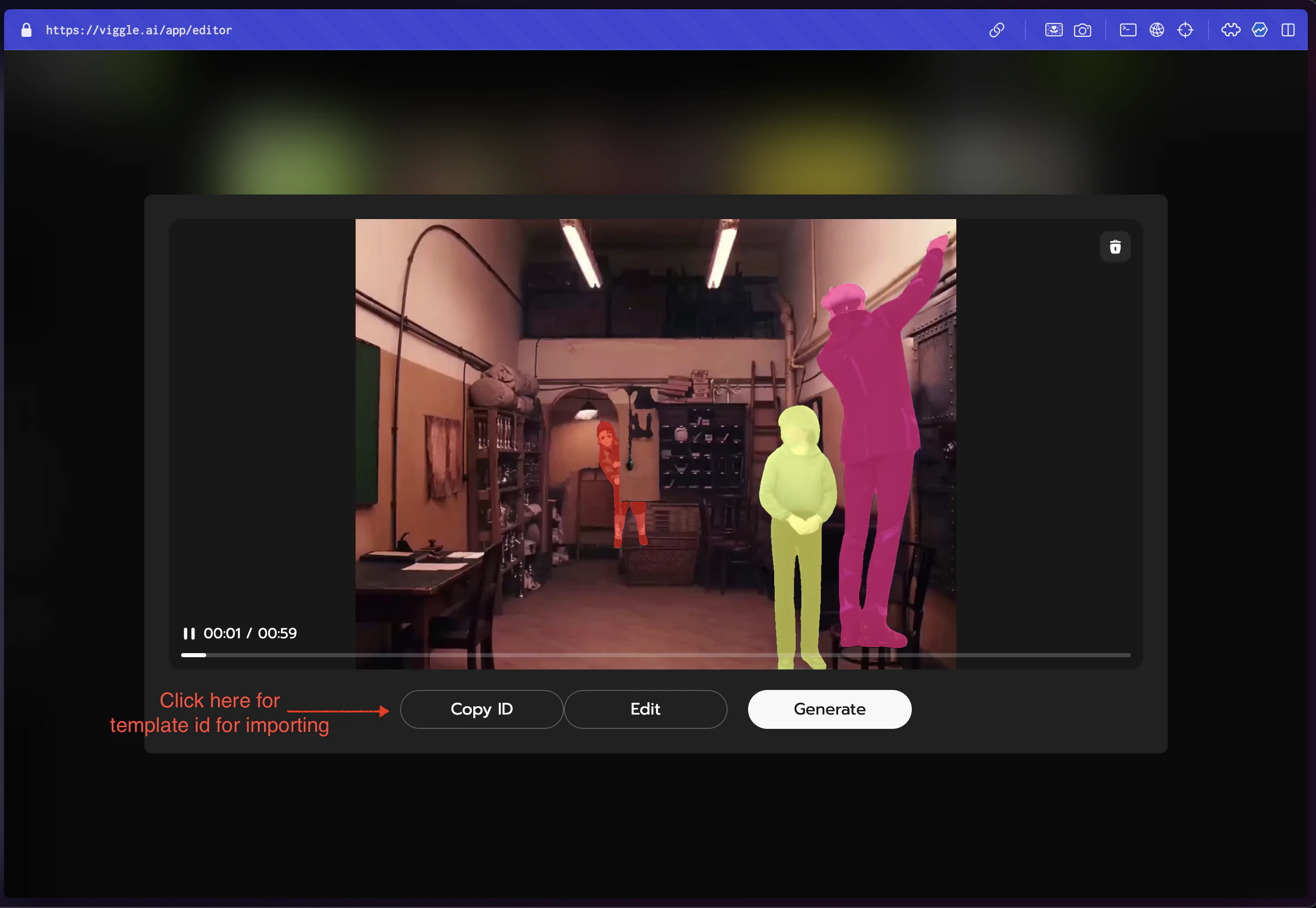
 Click **Copy ID** below the video preview.
 ## Importing via the API
```python Python theme={null}
import requests
API_KEY, BASE = "YOUR_API_KEY", "https://apis.viggle.ai"
headers = {"Authorization": f"Bearer {API_KEY}", "Content-Type": "application/json"}
scene = requests.post(f"{BASE}/api/scenes/import", headers=headers,
json={"template_uuid": "YOUR_TEMPLATE_UUID", "name": "My Imported Scene"}).json()
scene_id = scene["scene_id"]
```
```javascript JavaScript theme={null}
const API_KEY = "YOUR_API_KEY", BASE = "https://apis.viggle.ai";
const scene = await fetch(`${BASE}/api/scenes/import`, {
method: "POST",
headers: {
Authorization: `Bearer ${API_KEY}`,
"Content-Type": "application/json",
},
body: JSON.stringify({
template_uuid: "YOUR_TEMPLATE_UUID",
name: "My Imported Scene",
}),
}).then(r => r.json());
const sceneId = scene.scene_id;
```
```bash cURL theme={null}
curl -X POST "https://apis.viggle.ai/api/scenes/import" \
-H "Authorization: Bearer YOUR_API_KEY" \
-H "Content-Type: application/json" \
-d '{"template_uuid": "YOUR_TEMPLATE_UUID", "name": "My Imported Scene"}'
```
Render with the imported scene:
```python Python theme={null}
job = requests.post(f"{BASE}/api/render",
headers={"Authorization": f"Bearer {API_KEY}"},
data={"character_id": "YOUR_CHARACTER_ID", "scene_id": scene_id}).json()
```
```javascript JavaScript theme={null}
const form = new URLSearchParams();
form.append("character_id", "YOUR_CHARACTER_ID");
form.append("scene_id", sceneId);
const job = await fetch(`${BASE}/api/render`, {
method: "POST",
headers: { Authorization: `Bearer ${API_KEY}` },
body: form,
}).then(r => r.json());
```
```bash cURL theme={null}
curl -X POST "https://apis.viggle.ai/api/render" \
-H "Authorization: Bearer YOUR_API_KEY" \
-d "character_id=YOUR_CHARACTER_ID" -d "scene_id=SCENE_ID"
```
```python Python theme={null}
import requests
API_KEY, BASE = "YOUR_API_KEY", "https://apis.viggle.ai"
headers = {"Authorization": f"Bearer {API_KEY}", "Content-Type": "application/json"}
scene = requests.post(f"{BASE}/api/scenes/import", headers=headers,
json={"template_uuid": "YOUR_MULTI_TEMPLATE_UUID", "name": "Group Dance"}).json()
scene_id = scene["scene_id"]
for person_uuid in scene["character_uuids"]:
print(f" Person UUID: {person_uuid}")
```
```javascript JavaScript theme={null}
const API_KEY = "YOUR_API_KEY", BASE = "https://apis.viggle.ai";
const scene = await fetch(`${BASE}/api/scenes/import`, {
method: "POST",
headers: {
Authorization: `Bearer ${API_KEY}`,
"Content-Type": "application/json",
},
body: JSON.stringify({
template_uuid: "YOUR_MULTI_TEMPLATE_UUID",
name: "Group Dance",
}),
}).then(r => r.json());
for (const personUuid of scene.character_uuids) {
console.log(` Person UUID: ${personUuid}`);
}
```
```bash cURL theme={null}
curl -X POST "https://apis.viggle.ai/api/scenes/import" \
-H "Authorization: Bearer YOUR_API_KEY" \
-H "Content-Type: application/json" \
-d '{"template_uuid": "YOUR_MULTI_TEMPLATE_UUID", "name": "Group Dance"}'
# Response includes "character_uuids" array with a UUID for each tracked person
```
## Tips
If `character_uuids` is empty, it's a **video template** -- use with `character_id`. If `character_uuids` has entries, the template has multiple tracked persons.
Once imported, scenes are saved to your account and reusable across renders.
## Importing via the API
```python Python theme={null}
import requests
API_KEY, BASE = "YOUR_API_KEY", "https://apis.viggle.ai"
headers = {"Authorization": f"Bearer {API_KEY}", "Content-Type": "application/json"}
scene = requests.post(f"{BASE}/api/scenes/import", headers=headers,
json={"template_uuid": "YOUR_TEMPLATE_UUID", "name": "My Imported Scene"}).json()
scene_id = scene["scene_id"]
```
```javascript JavaScript theme={null}
const API_KEY = "YOUR_API_KEY", BASE = "https://apis.viggle.ai";
const scene = await fetch(`${BASE}/api/scenes/import`, {
method: "POST",
headers: {
Authorization: `Bearer ${API_KEY}`,
"Content-Type": "application/json",
},
body: JSON.stringify({
template_uuid: "YOUR_TEMPLATE_UUID",
name: "My Imported Scene",
}),
}).then(r => r.json());
const sceneId = scene.scene_id;
```
```bash cURL theme={null}
curl -X POST "https://apis.viggle.ai/api/scenes/import" \
-H "Authorization: Bearer YOUR_API_KEY" \
-H "Content-Type: application/json" \
-d '{"template_uuid": "YOUR_TEMPLATE_UUID", "name": "My Imported Scene"}'
```
Render with the imported scene:
```python Python theme={null}
job = requests.post(f"{BASE}/api/render",
headers={"Authorization": f"Bearer {API_KEY}"},
data={"character_id": "YOUR_CHARACTER_ID", "scene_id": scene_id}).json()
```
```javascript JavaScript theme={null}
const form = new URLSearchParams();
form.append("character_id", "YOUR_CHARACTER_ID");
form.append("scene_id", sceneId);
const job = await fetch(`${BASE}/api/render`, {
method: "POST",
headers: { Authorization: `Bearer ${API_KEY}` },
body: form,
}).then(r => r.json());
```
```bash cURL theme={null}
curl -X POST "https://apis.viggle.ai/api/render" \
-H "Authorization: Bearer YOUR_API_KEY" \
-d "character_id=YOUR_CHARACTER_ID" -d "scene_id=SCENE_ID"
```
```python Python theme={null}
import requests
API_KEY, BASE = "YOUR_API_KEY", "https://apis.viggle.ai"
headers = {"Authorization": f"Bearer {API_KEY}", "Content-Type": "application/json"}
scene = requests.post(f"{BASE}/api/scenes/import", headers=headers,
json={"template_uuid": "YOUR_MULTI_TEMPLATE_UUID", "name": "Group Dance"}).json()
scene_id = scene["scene_id"]
for person_uuid in scene["character_uuids"]:
print(f" Person UUID: {person_uuid}")
```
```javascript JavaScript theme={null}
const API_KEY = "YOUR_API_KEY", BASE = "https://apis.viggle.ai";
const scene = await fetch(`${BASE}/api/scenes/import`, {
method: "POST",
headers: {
Authorization: `Bearer ${API_KEY}`,
"Content-Type": "application/json",
},
body: JSON.stringify({
template_uuid: "YOUR_MULTI_TEMPLATE_UUID",
name: "Group Dance",
}),
}).then(r => r.json());
for (const personUuid of scene.character_uuids) {
console.log(` Person UUID: ${personUuid}`);
}
```
```bash cURL theme={null}
curl -X POST "https://apis.viggle.ai/api/scenes/import" \
-H "Authorization: Bearer YOUR_API_KEY" \
-H "Content-Type: application/json" \
-d '{"template_uuid": "YOUR_MULTI_TEMPLATE_UUID", "name": "Group Dance"}'
# Response includes "character_uuids" array with a UUID for each tracked person
```
## Tips
If `character_uuids` is empty, it's a **video template** -- use with `character_id`. If `character_uuids` has entries, the template has multiple tracked persons.
Once imported, scenes are saved to your account and reusable across renders.